
Create a transparent PNG, then in Word choose Insert → Pictures → This Device. Select the PNG, open Layout Options, and choose In Front of Text when you need to place it directly over a signature line. Resize from a corner handle to preserve its proportions.
Use an authorized signature only. A signature image is not proof of identity or consent. Insert your own signature, or one whose owner has explicitly authorized its use for the specific document.
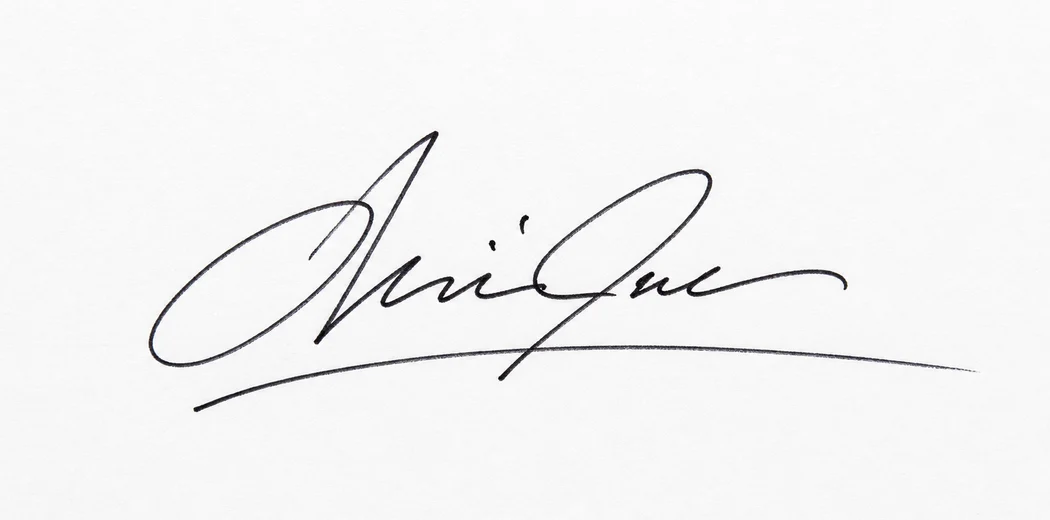
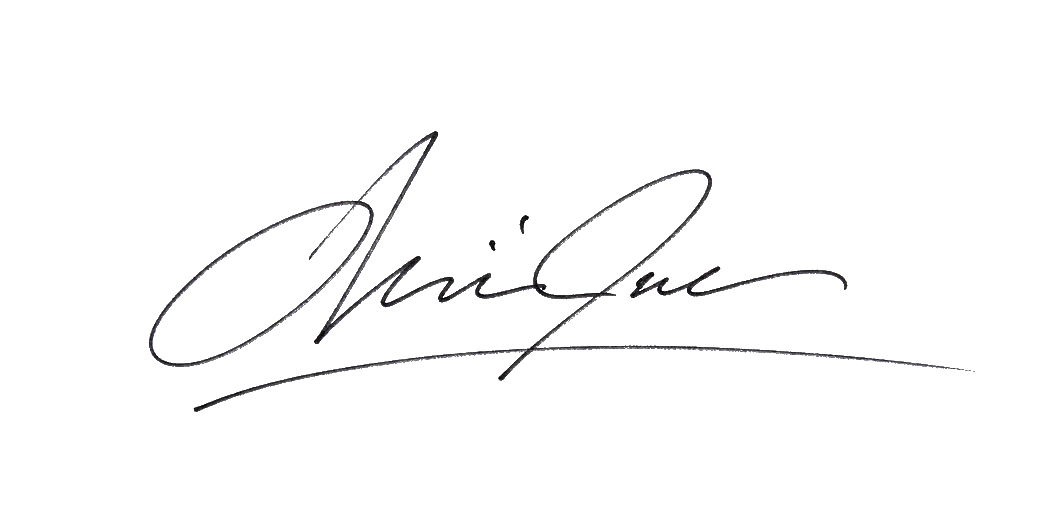
1. Prepare the signature as a transparent PNG
Start with a clear photo or scan. Dark black or blue ink on white or light paper gives the most reliable separation. Keep the camera parallel to the page and use even light; a strong shadow can look like part of the handwriting. For a repeatable setup, follow the signature photo guide.
- Open the signature background remover.
- Upload your photo or scan. Processing happens locally in your browser.
- Adjust Background removal until the paper disappears but thin pen strokes remain.
- Use Original to keep the photographed ink, or choose Black or Blue for a consistent color.
- Leave Remove empty space around signature enabled, then download the PNG.
Do not convert the downloaded file to JPG. JPG does not support transparency and will usually restore a solid white background.
2. Insert the PNG into Word
- Open the Word document and click near the place where the signature should appear.
- Choose Insert → Pictures → This Device. On some versions, the menu may say Picture from File or offer a Photos option.
- Select the transparent PNG and choose Insert.
Word initially treats many inserted pictures as a character in the text line. That is useful for icons, but it can make a signature difficult to position. The next step changes how the image relates to the document text.
3. Position the signature on the line
Select the signature and open Layout Options. Choose the option that matches the document:
- In Front of Text: best when the signature needs to sit directly over a printed signature line or form field.
- Square: useful when surrounding text should move around the image.
- In Line with Text: useful when the signature should behave like a large character inside a paragraph.
For a fixed form, select In Front of Text and, when available, Fix position on page. Microsoft’s current Word guidance confirms that this combination lets a picture sit in front of text and remain at a chosen page position.
4. Resize without distorting the handwriting
Drag a corner handle, not a side handle. Corner resizing preserves the width-to-height ratio; pulling only the left, right, top, or bottom can make the signature look unnaturally wide or compressed.
Judge the size against nearby text rather than filling the whole signature line. If the PNG becomes blurry, return to the original downloaded file and reduce it inside Word instead of enlarging a screenshot or a previously compressed copy.
5. Save and verify the final document
Save a copy of the Word document, then reopen it to confirm the signature has not moved. If the document will be shared as a PDF, use Word’s PDF export and inspect the exported file at 100% zoom. Check that the paper behind the signature is visible, the ink is not clipped, and the image does not cover dates or form labels.
A pasted signature image is a visual mark. It does not create the identity verification, audit trail, certificate, or tamper evidence of a certificate-based digital signature. Follow the recipient’s required signing method when authenticity matters.
Common Word problems
The signature still has a white box
Confirm that the file ends in .png, not .jpg. Open it over a dark background or checkerboard to verify that the surrounding area is truly transparent.
The signature will not move freely
Select the image and change Layout Options from In Line with Text to In Front of Text or Square.
The ink looks faint
Return to the remover and move Background removal slightly left. Thin gray or blue strokes need a lower removal strength than dark black ink. Use the troubleshooting guide if other artifacts remain.
The image moves when text changes
Use In Front of Text and select Fix position on page. For flowing documents, Square with Move with text may be more appropriate.
Official Word references
The menu names in this guide follow Microsoft’s current documentation: