
Create a transparent PNG, open the PDF in Acrobat, and choose E-Sign → Fill & Sign → Add signature. Select the image option, choose your PNG, place it in the authorized signature field, resize it from a corner, and save a separate final copy.
Use an authorized signature only. Never place someone else’s signature in a PDF without their informed permission. Follow the recipient’s required signing process when identity verification or legal validity matters.
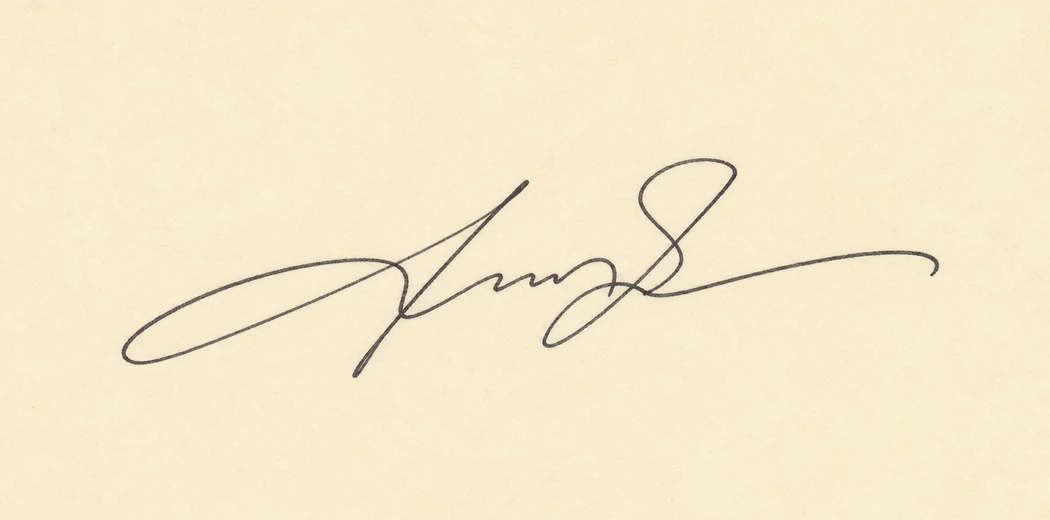

Image signature or digital signature?
A transparent signature PNG is an image of handwriting. It is useful when a form accepts an image signature or when a visual signature is appropriate, but it does not independently verify the signer’s identity.
A certificate-based digital signature uses a digital ID and can provide identity information and tamper evidence. Some legal, financial, government, or company workflows require that stronger method. Removing an image background does not convert handwriting into a certificate-based digital signature.
Before using the PNG, check the instructions from the person or organization receiving the PDF. If the form requires a verified digital ID, an e-signature platform, or a specific certificate, follow that process instead.
1. Create the transparent signature PNG
- Use a clear photograph or scan with the signature on light paper. See how to take a good signature photo if you are creating a new source image.
- Open the free signature background remover and select the image.
- Adjust removal strength until paper and shadows disappear while the pen strokes remain complete.
- Keep automatic trimming enabled so the result does not have large invisible margins.
- Download the result as PNG and store it somewhere private.
Automatic trimming matters in PDF editors because an image with large transparent margins can be difficult to align: the visible ink looks far away from the image’s selection handles.
2. Add the image with Acrobat Fill & Sign
Adobe’s current Acrobat web instructions allow an existing image to be used as a signature or initials:
- Open the PDF in Acrobat and select E-Sign → Fill & Sign.
- Select Add signature. If a saved signature is already present, remove or replace it only when appropriate.
- Choose the Image option and select the transparent PNG.
- Apply the signature, then click the authorized signature field to place it.
- Drag the corner control to resize and drag the signature to position it.
- Save or download a separate completed copy so the untouched original remains available.
Acrobat notes that a signature added to a form and saved may no longer be editable. Check its position, scale, and page before saving the final file.
Alternative: add the PNG as a normal PDF image
If you are preparing a document layout rather than signing through Fill & Sign, Acrobat’s Edit tool can add a normal image:
- Open the PDF and select Edit.
- Choose Image → Choose image.
- Select the PNG, click where it should appear, then use the bounding handles to resize it.
- Drag the image into position and verify the page at normal zoom.
This editing feature may require a paid Acrobat plan. Other PDF editors use different labels, but the underlying requirement is the same: the editor must preserve PNG transparency rather than flattening the image onto white.
3. Check the PDF before sending it
- Confirm the signature is on the correct page and inside the correct field.
- Make sure the ink is not stretched, clipped, blurry, or covering nearby dates and labels.
- Close and reopen the saved PDF to confirm the signature remains visible.
- Keep the transparent PNG private; do not attach or distribute the source image unnecessarily.
- Use the recipient’s required secure signing workflow when an audit trail or verified identity is needed.
Common PDF problems
A white rectangle covers the form
The source is probably JPG or a PNG without real transparency. Recreate the file and verify it over the checkerboard preview before downloading.
The signature is tiny inside a large box
Enable Remove empty space around signature before downloading. This crops transparent margins around the visible ink.
The image looks rough or faded
Use the original-resolution photo, lower the removal strength for thin strokes, and avoid enlarging the PNG beyond its natural size. Check the full troubleshooting guide for symptom-specific fixes.
The PDF rejects an image signature
The workflow may require a certificate-based digital signature or a specific e-signature service. Follow the form owner’s instructions rather than trying to bypass the requirement.
Official Adobe references
The Acrobat steps in this guide are based on Adobe’s current documentation: